Buying Guides
Computer Buying Guide

Thinking about buying a new desktop computer? Whether you’re looking for a great all-rounder or a model that’ll handle gaming and photo editing with ease, you’ll find a great range of desktop computers to choose from. With so many different types of desktop computers available, we’ve created a handy computer buying guide to help make finding the right desktop PC for your needs easier. Find out more about the different types of desktop computers on the market, features to look out for and more.


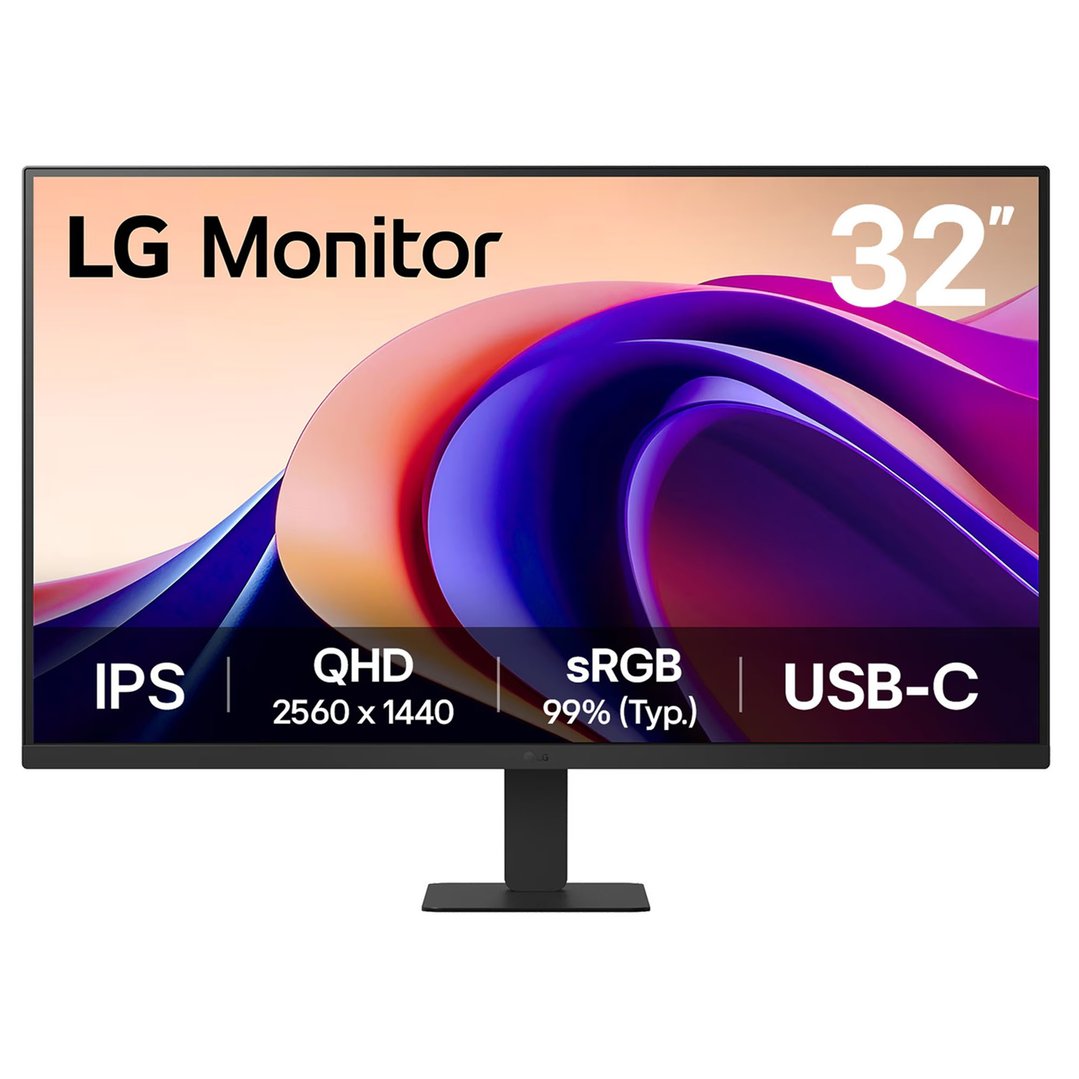
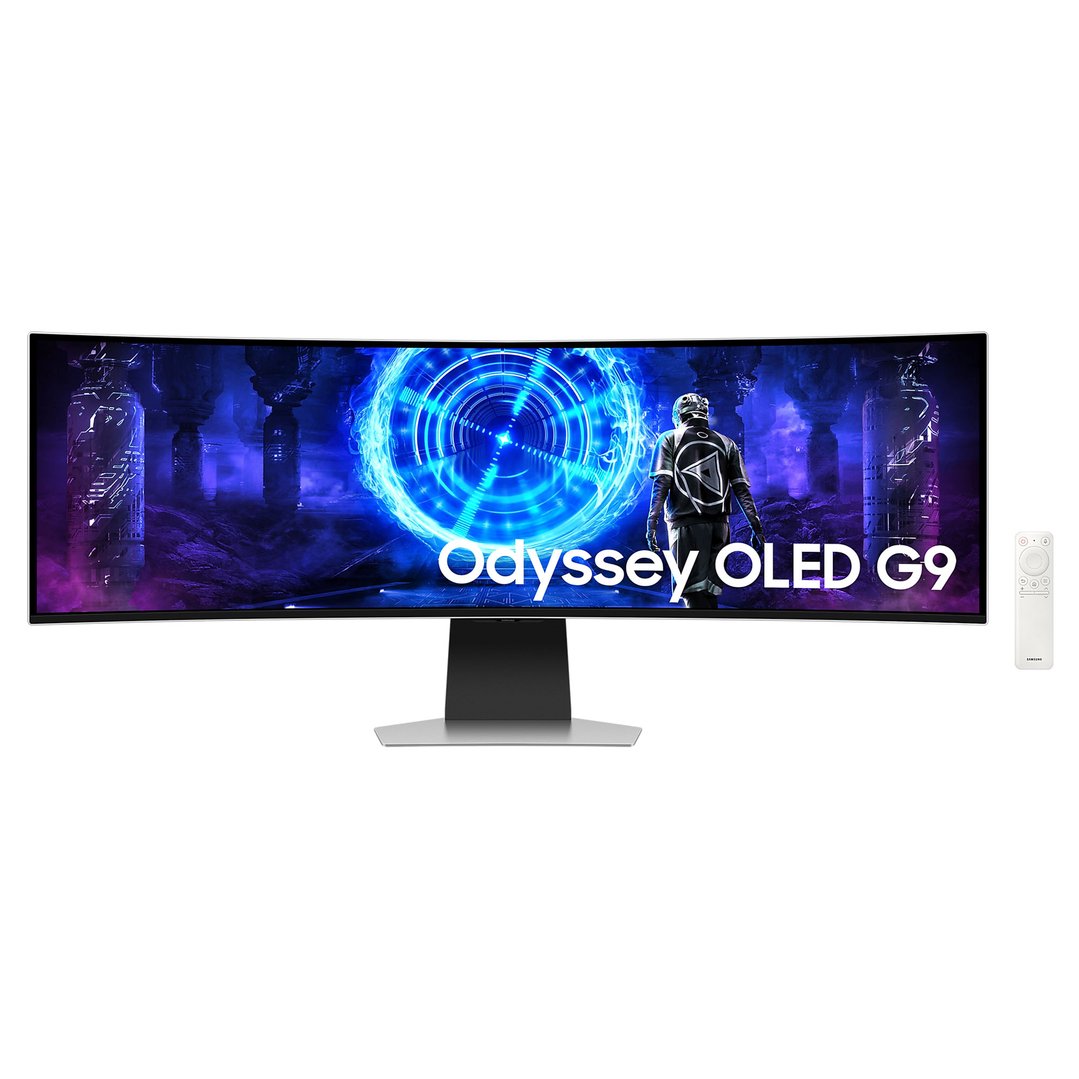
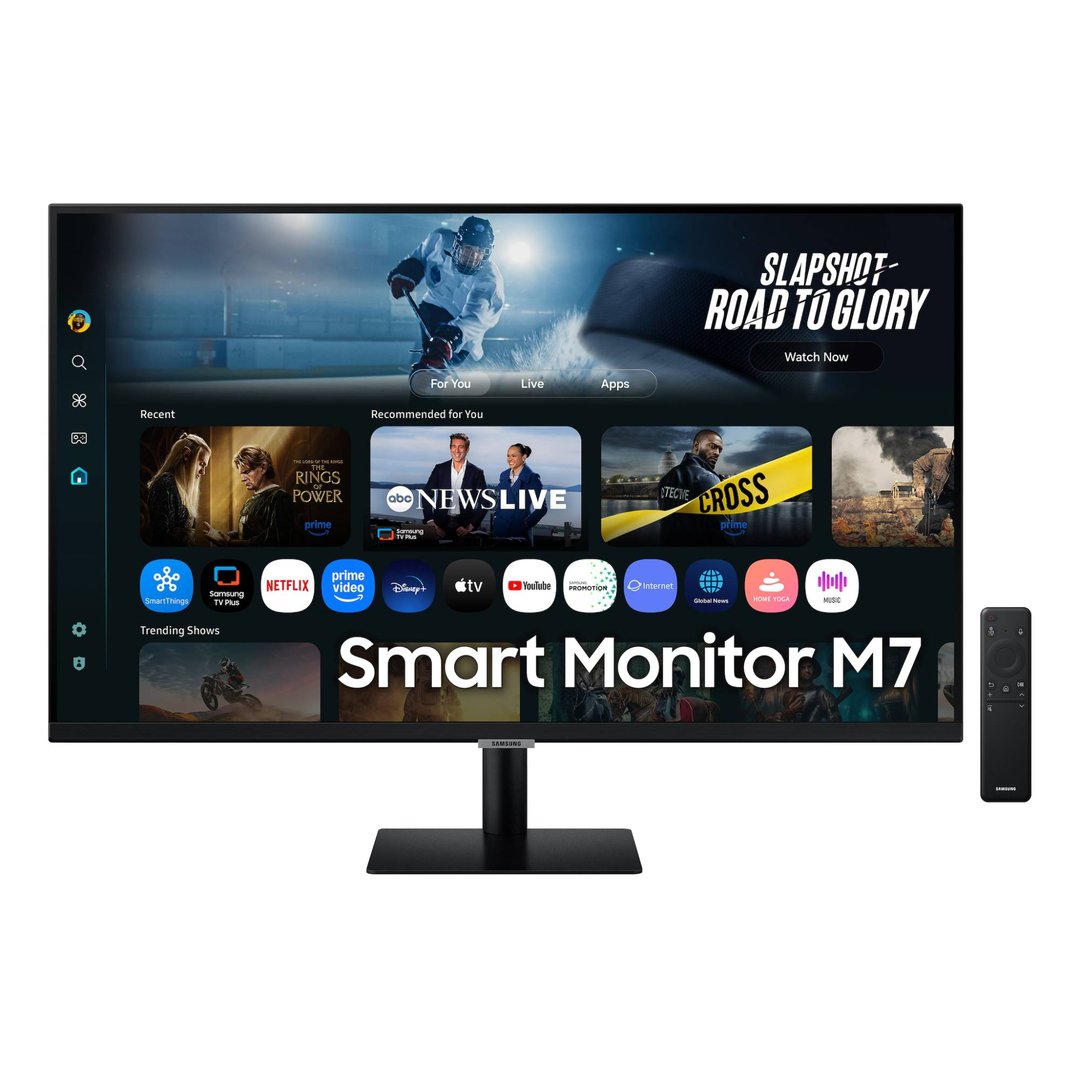
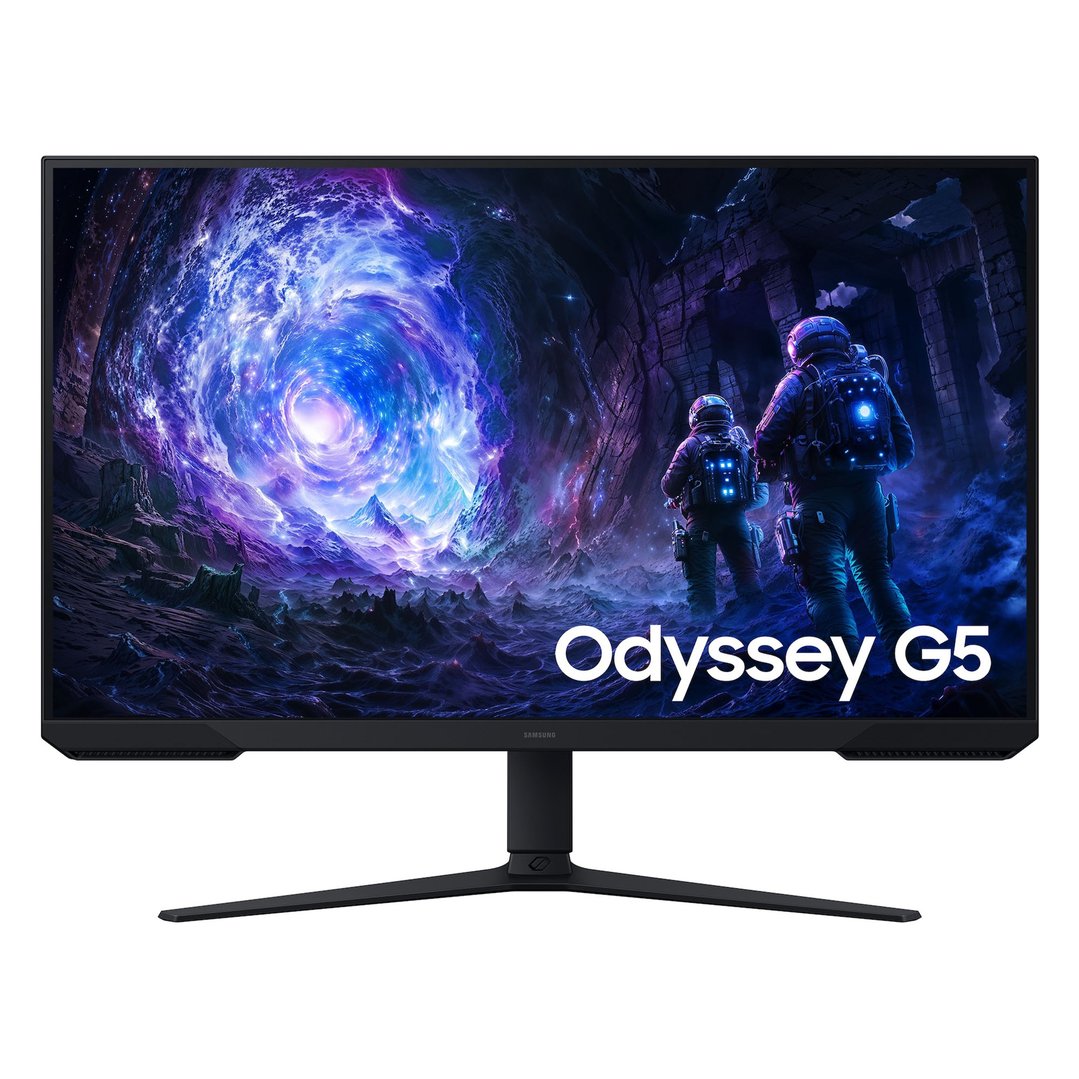



TYPES OF DESKTOP COMPUTERS
TOWER COMPUTERS
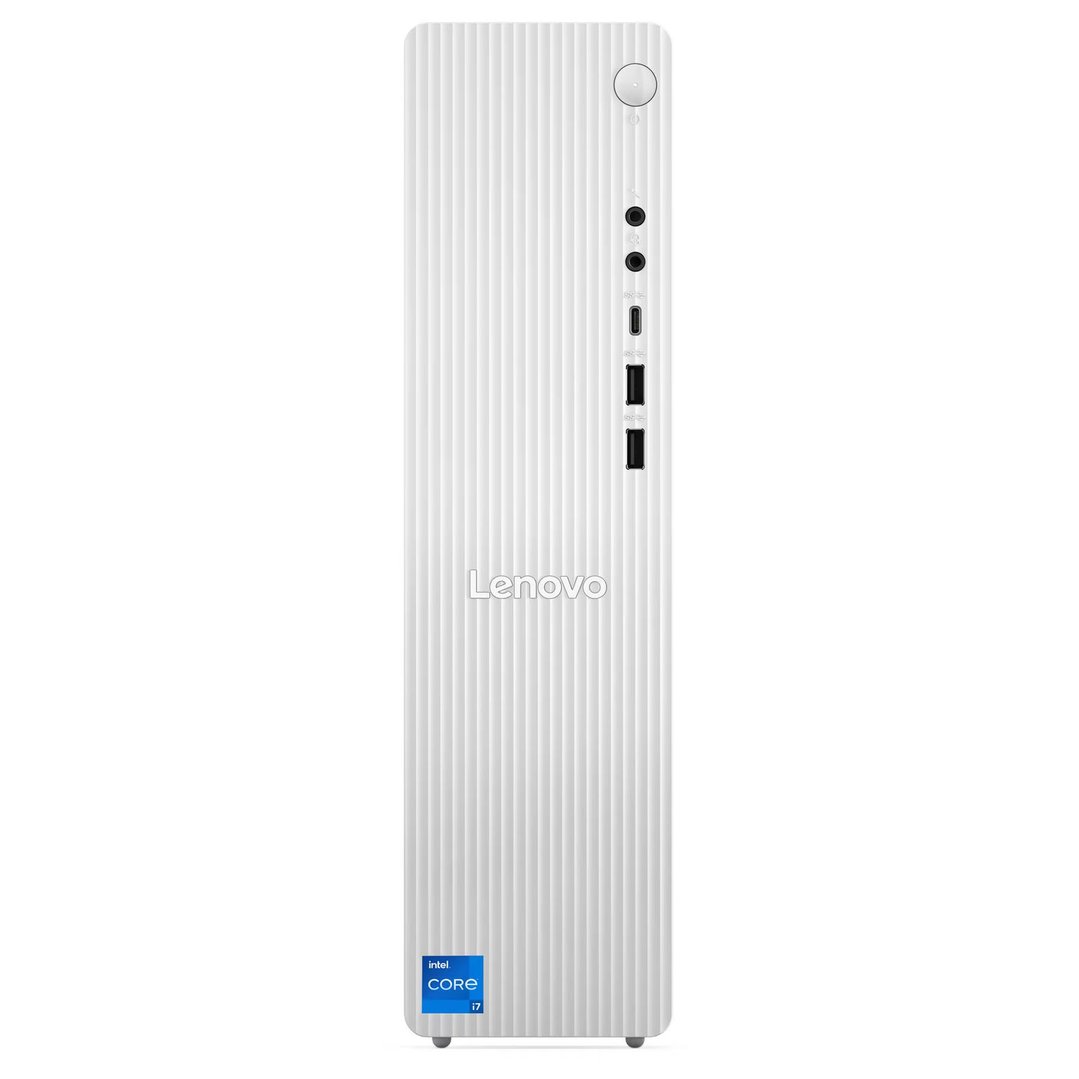
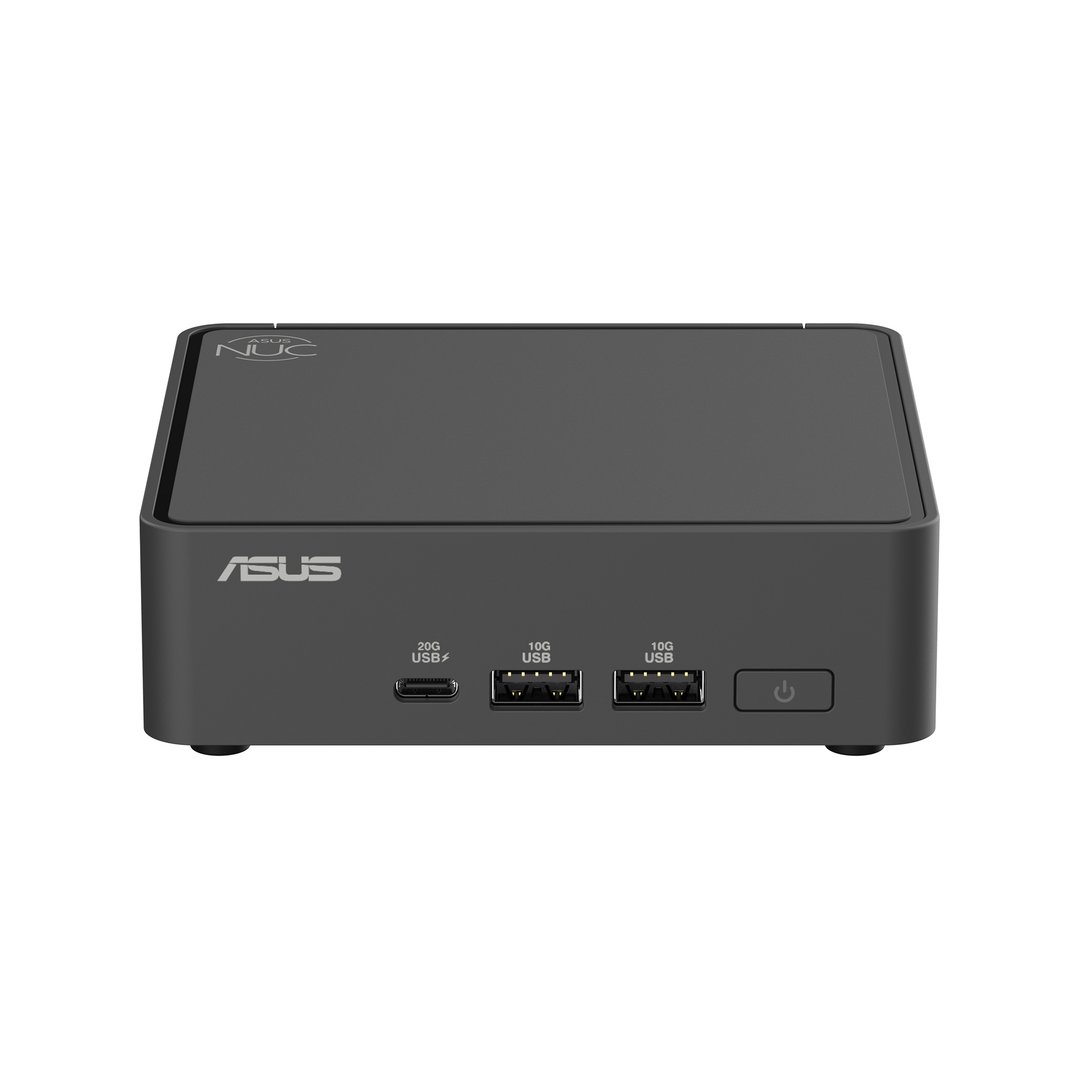
One of the most common types of desktop computer, tower computers are composed of a large upright case that is connected to peripherals such as a monitor, keyboard and mouse. They are often quite large in size, but compact models are available.
Users often have the opportunity to upgrade the specifications of tower computers to match their changing needs, extending the life of the device.
Generally don’t come with a monitor, giving users the freedom to choose one to suit their needs and workspace.
Tend to be quite bulky, taking up a large amount of space on or under your desk. Some small desktop computer towers are available.
Needing to use more cables to connect peripherals such as monitors and keyboards may make cable management more difficult.
ALL-IN-ONE COMPUTERS
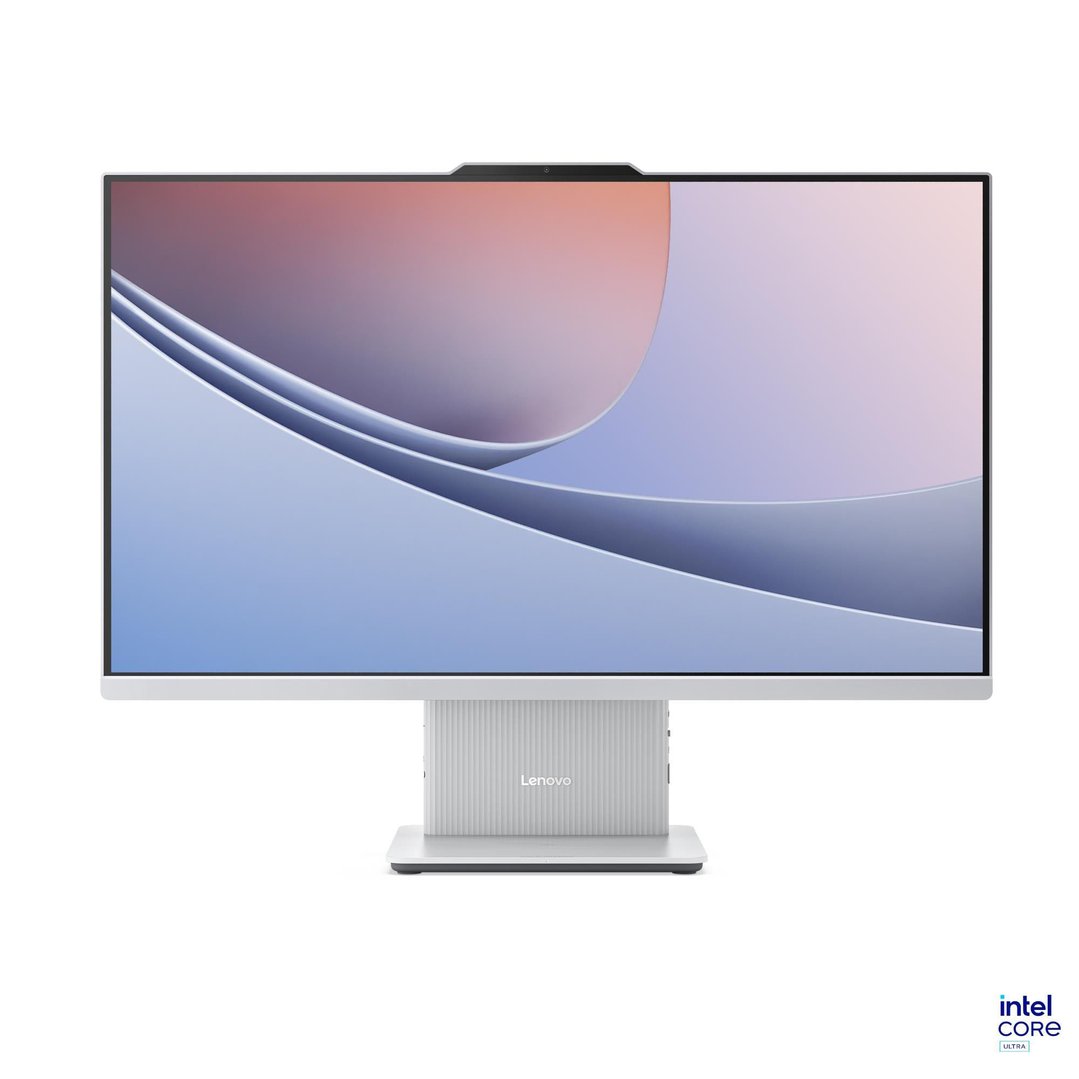
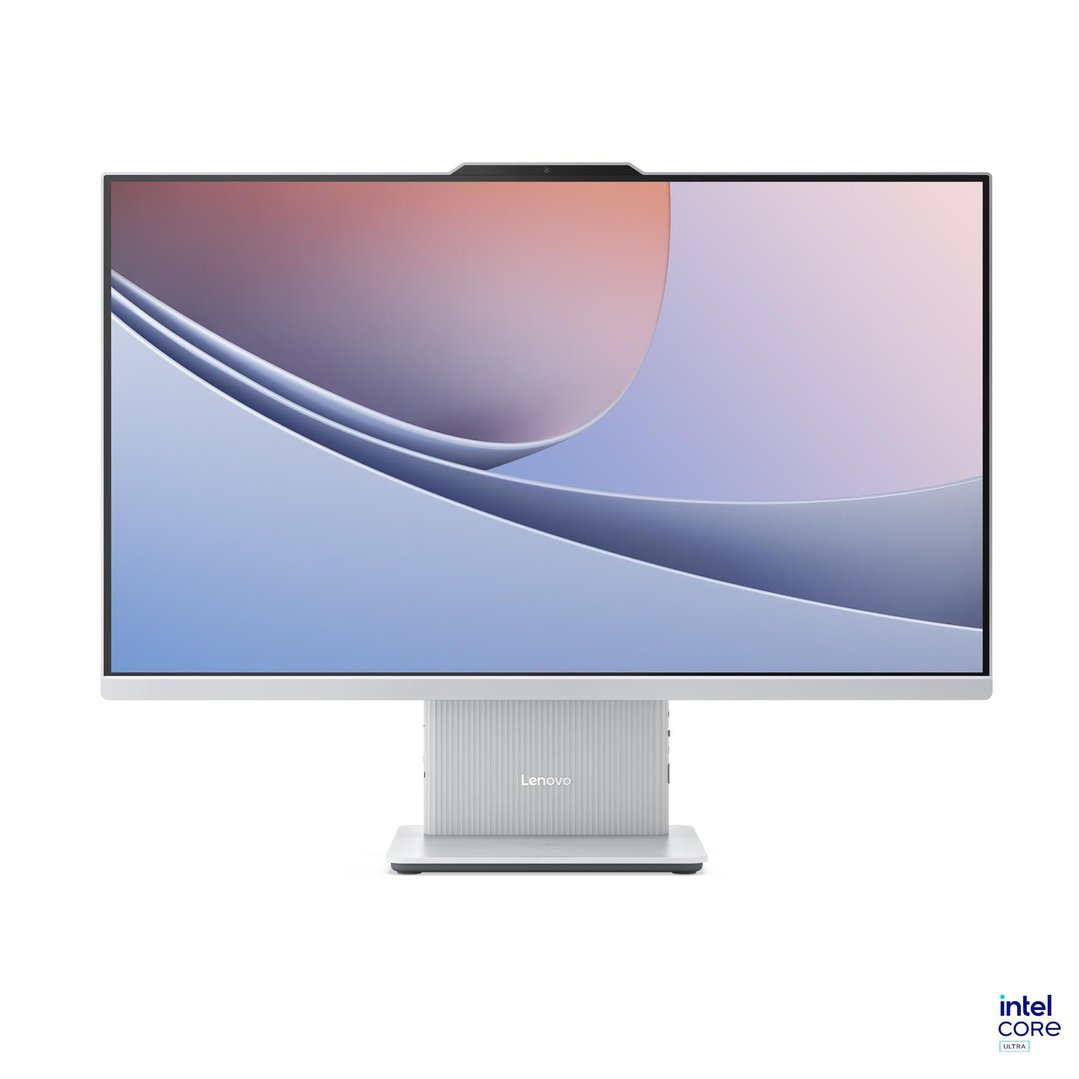
Great for saving desk space, all-in-one desktop computers are similar in size to a standard desktop monitor. Easy to set up, all components of all-in-one computers, including the screen, are contained within a single case, giving them a sleek and stylish look.
All components are contained within a single casing, taking up less space on your desk.
A monitor is incorporated into the device, meaning there’s no need to purchase one separately.
Some models have touchscreen functionality.
Can be a good choice for a family computer.
Can be harder to upgrade when compared to tower computers.
Typically more expensive than many tower computers.

OPERATING SYSTEMS
WINDOWS
The most popular operating system in use, Windows has also been around the longest. Over time, a number of changes have been made to the operating system, helping to make it user friendly and easy to navigate. You’ll find a wide variety of programs available for use with the Windows operating system.
OS X
Continuing to grow in popularity, OS X is favoured for its quick start-up speeds and clean design. Made for use with Apple computers, an increasing selection of compatible software is under development to allow OS X users to enjoy the same programs as Windows users.
CHROME OS
Easy to use and surprisingly fast, Chrome OS relies primarily on the use of web applications, such as Google Sheets and Google Docs. Developed by Google, many of the programs used with Windows and OS X devices are not supported by Chrome OS, meaning that it may not may not match the needs of all users.
PROCESSORS
Also known as a central processing unit (CPU), a processor is considered to be the brains of a computer. Dictating how fast a computer is and how well it can manage multiple tasks at one time, it can be an important consideration when performance matters to you. A processor’s credentials are measured in several ways, including its overall speed and the number of cores it contains. More often than not, newer generation processors tend to perform better than those released earlier. If you plan to use your desktop computer for browsing the internet and other general home computer tasks, a standard processor should be fine, while gamers and those using demanding software should investigate processors with more power.
MEMORY
Referred to as random access memory, or RAM, a desktop computer’s memory is measured in gigabytes. The amount of RAM that you’ll require will depend on how you plan to use your computer, however, in most cases the more RAM a computer has, the better it will perform, especially when running several programs at one time. If you’re wanting to purchase a computer that you’ll use for common tasks such as word processing and browsing the internet, look for a model with a minimum of 8GB of RAM. If, on the other hand, you’re after a workhorse that can cope with more demanding software, such as professional photo and video editing software, you should consider a model with 16GB of RAM or more.
STORAGE
When buying a new computer, it’s important to think about how much storage you’ll require. Measured in gigabytes and terabytes, the amount of storage you’ll need will not only include your existing files and programs, but also enough space to account for those that you’ll create and install in the future. If you are deciding between two models with slightly different storage spaces, it can be a good idea, if your budget allows it, to go for the larger one to help future proof your device.
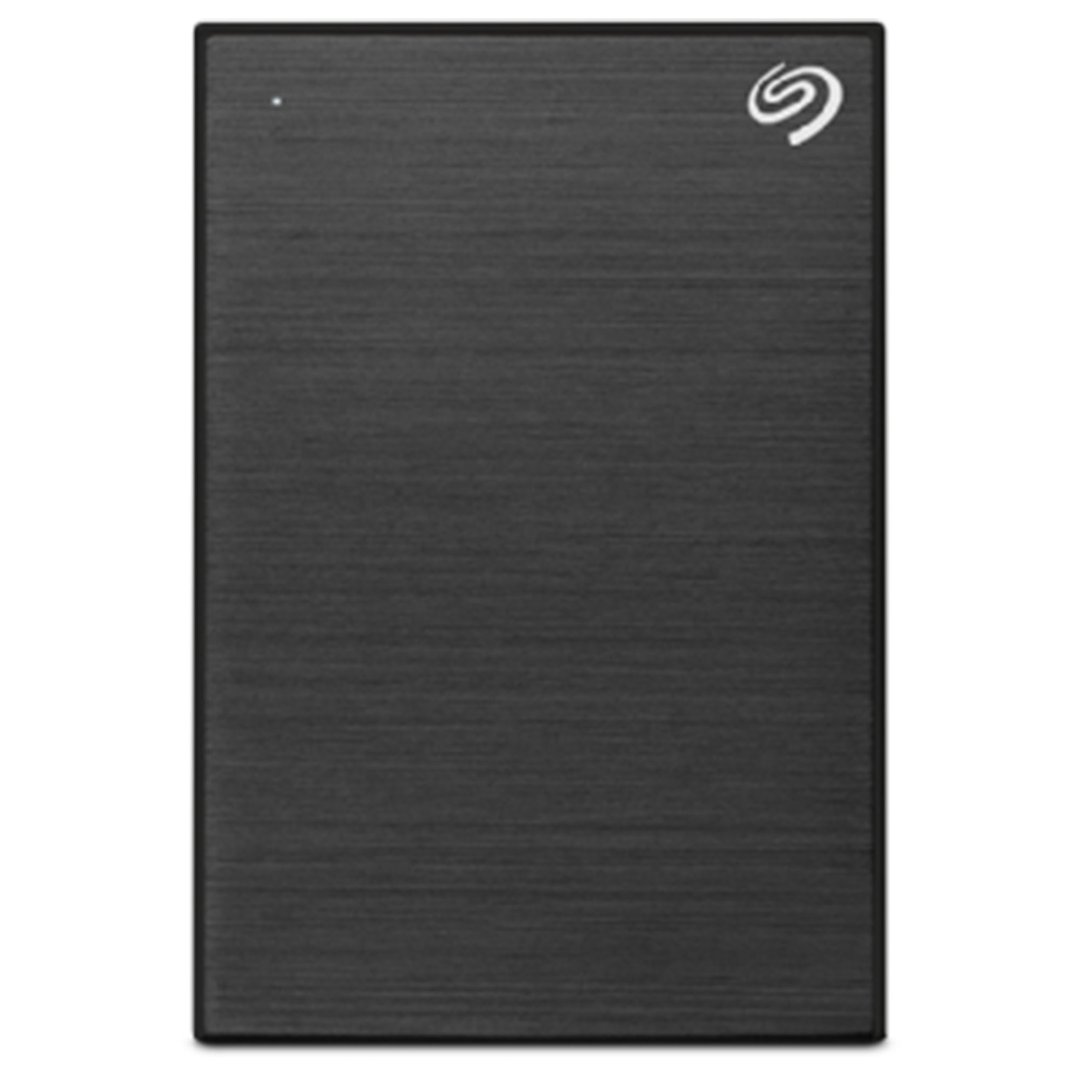
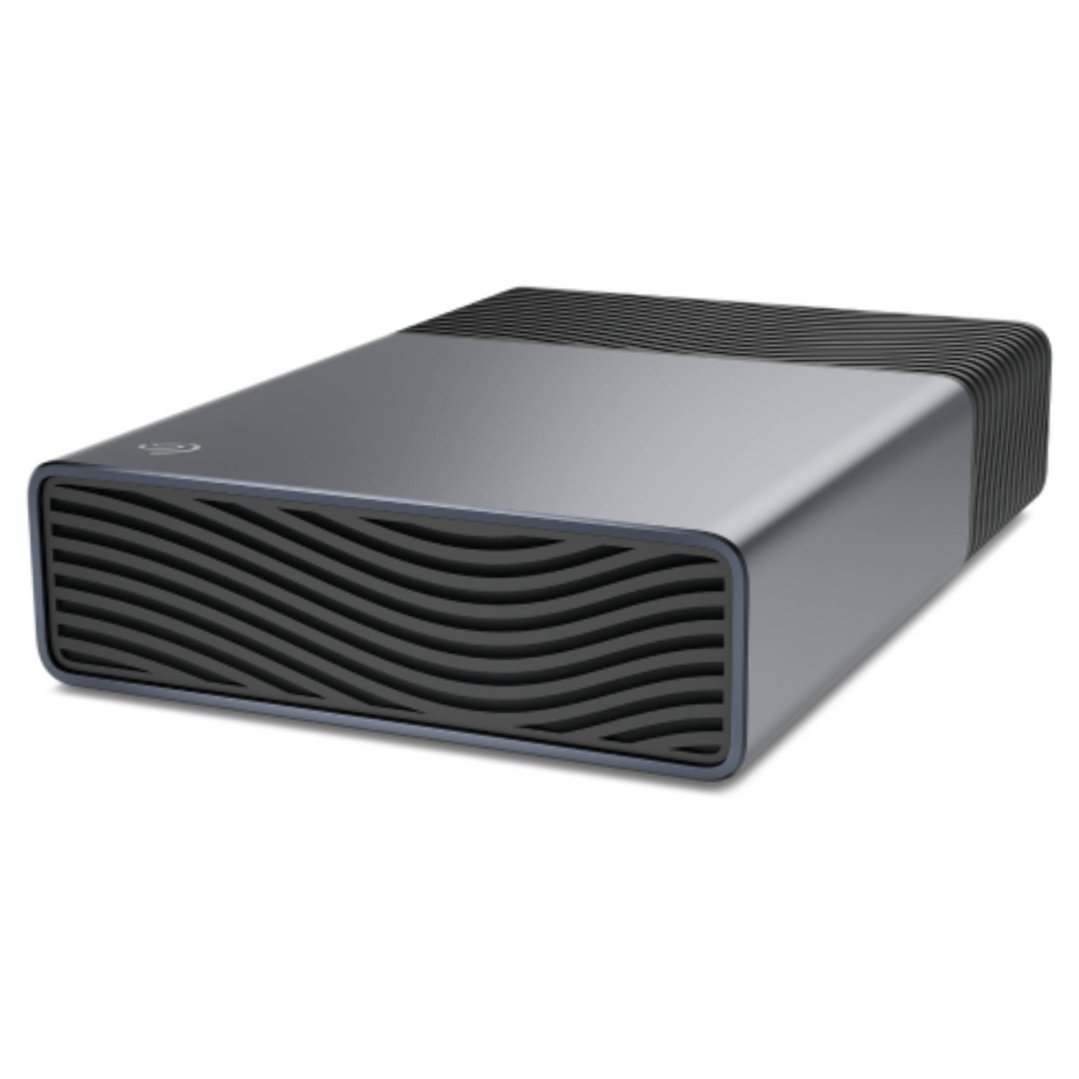
While the amount of space for storage is important, the type of storage is also a key consideration. The two different types of storage used in computers are solid state drives and hard disk drives, with each offering its own benefits.
SOLID STATE DRIVES
Provide faster file access and transfer.
Can be quieter than hard disk drives.
Generally have a smaller storage capacity.
Can be more expensive than hard disk drives.
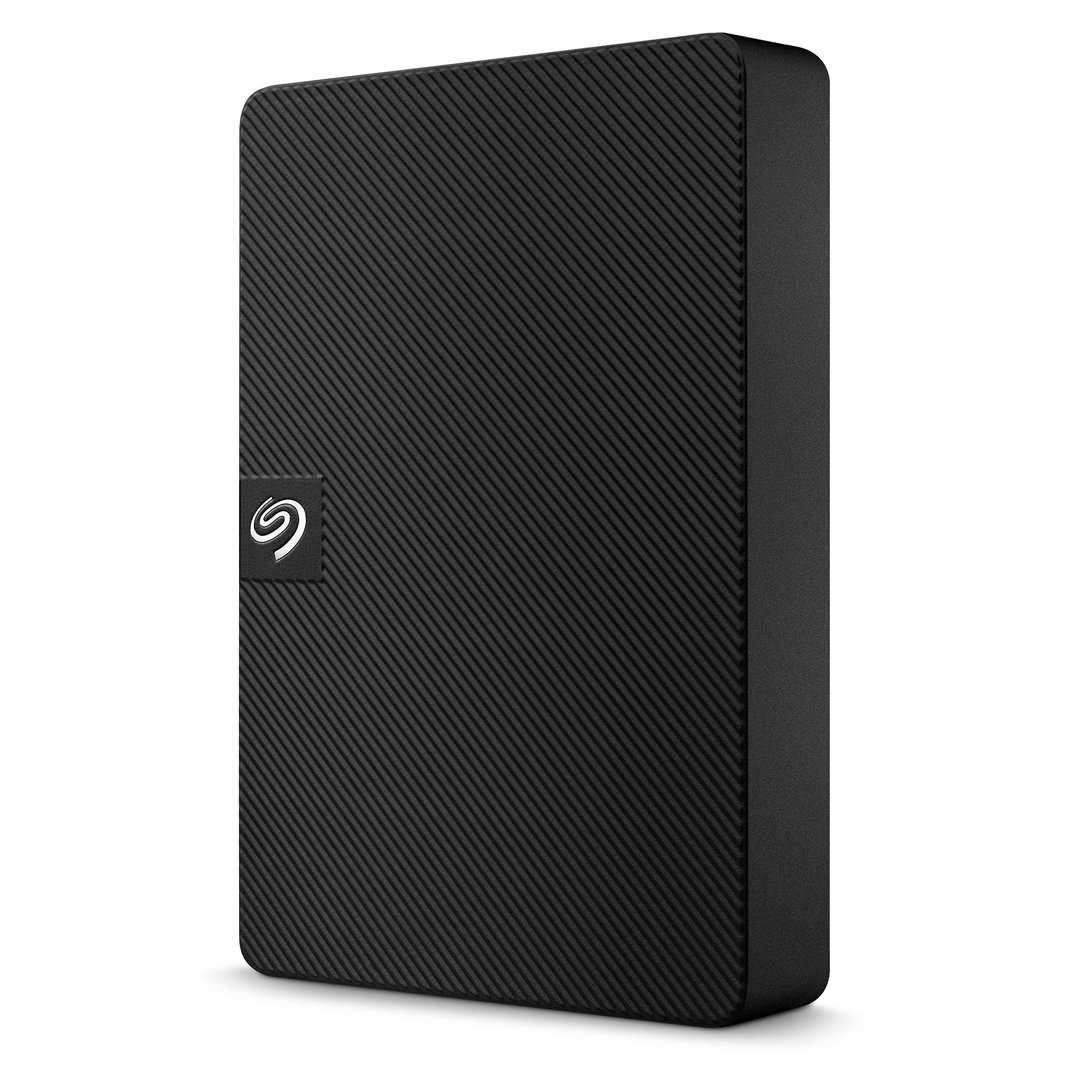
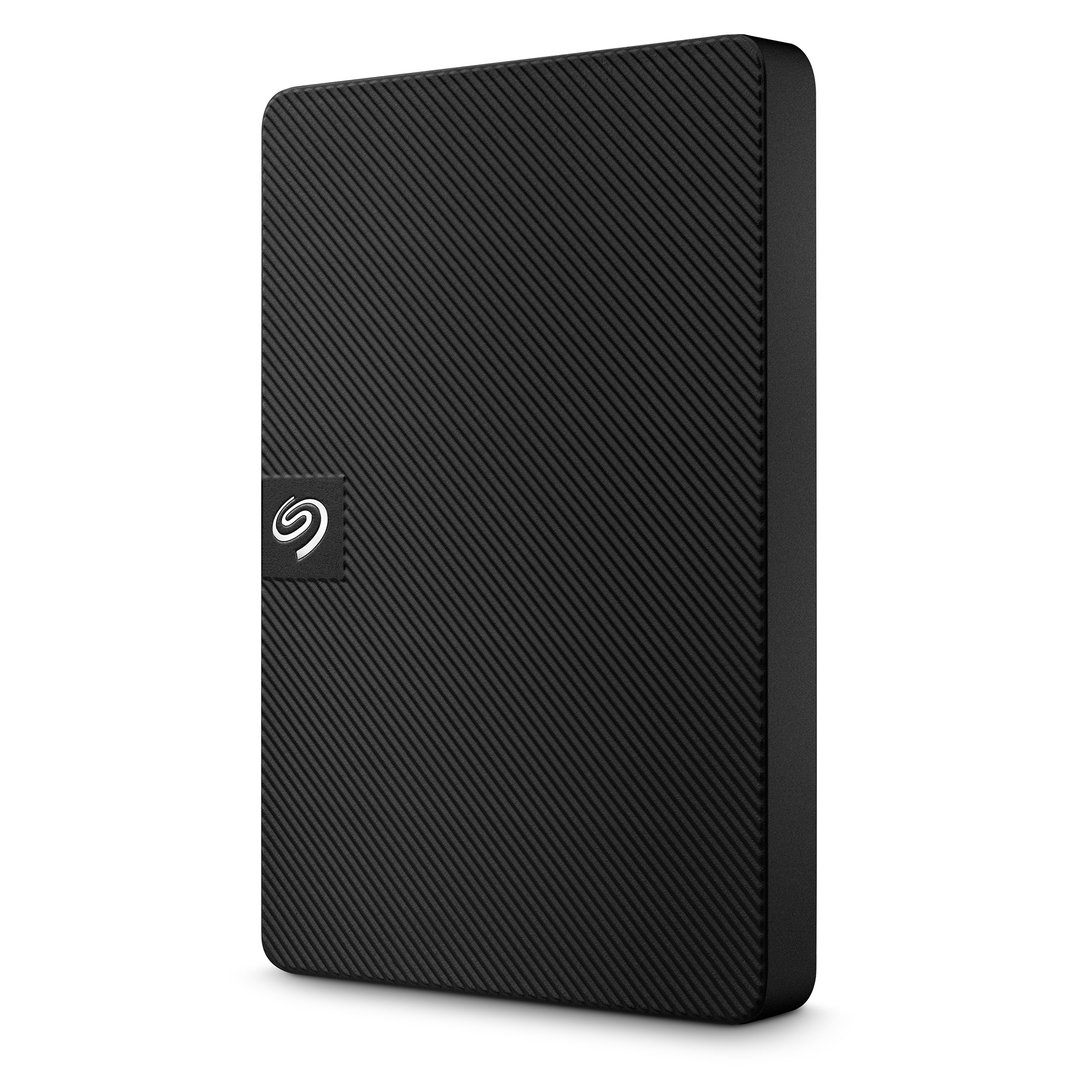
HARD DISK DRIVES
Offer larger storage capacities.
Tend to be cheaper than solid state drives.
May be louder than solid state drives.
Provide slower file access and transfer.
| Storage Requirements | Suggested Storage Space |
| Storing very few files | 120GB to 250GB |
| Storing a small library of music, videos and photos | 250GB to 700GB |
| Storing a small library of music, videos and photos | 700GB to 1TB |





FEATURES TO LOOK OUT FOR
Ports: Most desktop computer users choose to use several peripheral devices, such as keyboards and mice, monitors and printers, at a time. To ensure that you can use all your peripherals together when you need to, you should check to see how many ports, including USB ports and HDMI ports, your chosen computer has.
Graphics: All computers have some kind of graphics card, but the quality can vary from model to model. For a regular user, it’s not something that you need to worry about too much, but if you intend to use your desktop computer for gaming or photo and video editing, you should compare the graphics specifications offered by each computer model you’re considering. For gaming as well as photo and video editing, it’s best to choose a model that not only has a specialist graphics card but also at least 1GB of dedicated memory.
Computer footprint: If you’re tight on space in your home office or study, it’s a good idea to find out how much space you have available for your new computer. Measure the desk space you have to spare and then compare it to the measurements of your chosen model. All-in-one computers can be a good choice when space is limited, while tower computers may need more room.
Included peripherals: It’s a good idea to check what accessories each computer comes with to help reduce the number of additional purchases you’ll need to make. Most tower computers do not come with a monitor, keyboard or mouse.
Disc drives: With many users choosing streaming media instead of buying physical CDs, DVDs and Blu-ray discs, not all computer models come with a disc drive as standard. If having a disc drive is important to you, be sure to check if one is included in the computer models you’re considering.
Screen size: Although not all types of desktop computers come with screens, if you are thinking about buying an all-in-one computer, it’s a good idea to consider what screen size is best for your needs. If you’re tight on space, a model with a smaller screen might be a better choice for you, while if space isn’t an issue, you may go as large as you wish. Be sure to also look for a model with a high resolution screen, such as a 1920 x 1080 model, as it will ensure the picture is nice and crisp.
LOOKING TO CREATE THE ULTIMATE HOME OFFICE SETUP?
If you're looking to create the ultimate home office setup, you might like to check out our other helpful buying guides below: